
A Wildeye API key lets an application read your data through the Wildeye REST API. You send it as a bearer token:
Authorization: Bearer <API_KEY>
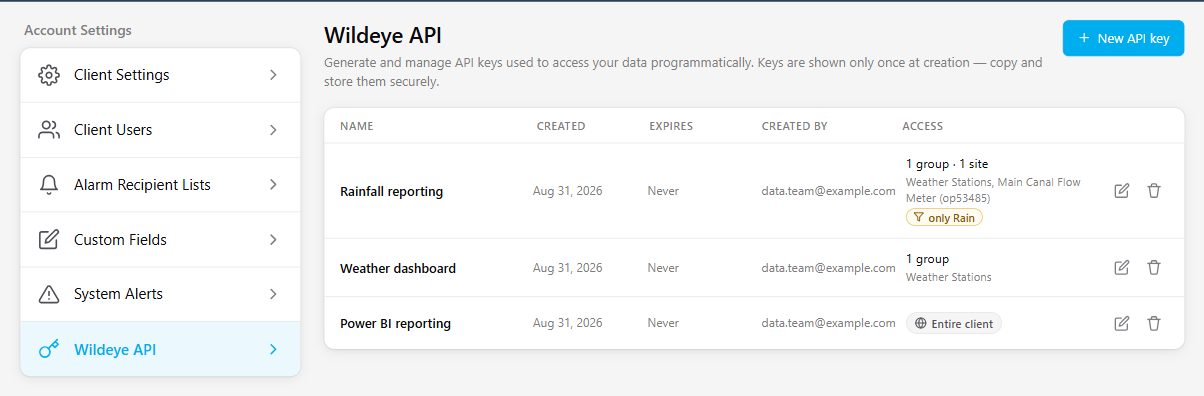
Client administrators create and manage keys under Settings > Wildeye API. Each key controls which sites it can read and which measurements it returns. You set that when you create the key, and you can change it afterwards without replacing the key.
Treat a key like a password. Keep it private, store it in your application's secret store, and never put it in a public repository or in client-side code.
Creating a key
Create a separate key for each integration. Each one can then be scoped to just what it needs, and removing one will not affect the others.
-
Go to Settings > Wildeye API and choose New API key.
-
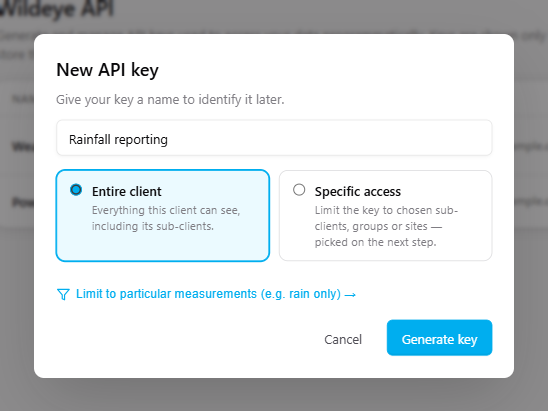
Name it after the integration it is for, for example "Power BI reporting" or "Irrigation scheduler". This is the name you will look for later when you need to change or remove it.
-
Choose how much it can read. Entire client covers everything the client can see, including any sub-clients. Specific access lets you pick the sub-clients, groups or sites the key may read.
-
If the integration only needs certain kinds of data, choose Limit to particular measurements. A rainfall dashboard, for instance, has no need of soil moisture.
-
Select Generate key.
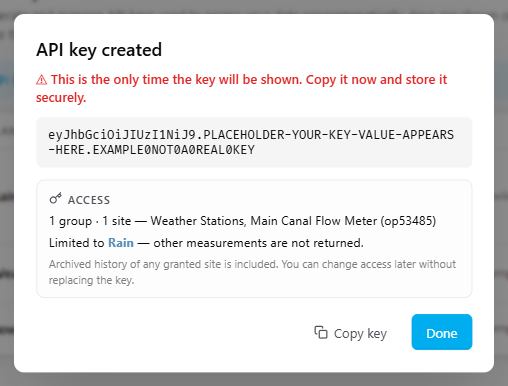
The key is shown only once. Copy it before you close the dialog. If it is lost there is no way to retrieve it, and you will need to delete that key and create another.
Choosing what a key can read
Two separate controls decide what a key returns, and they pull in opposite directions.
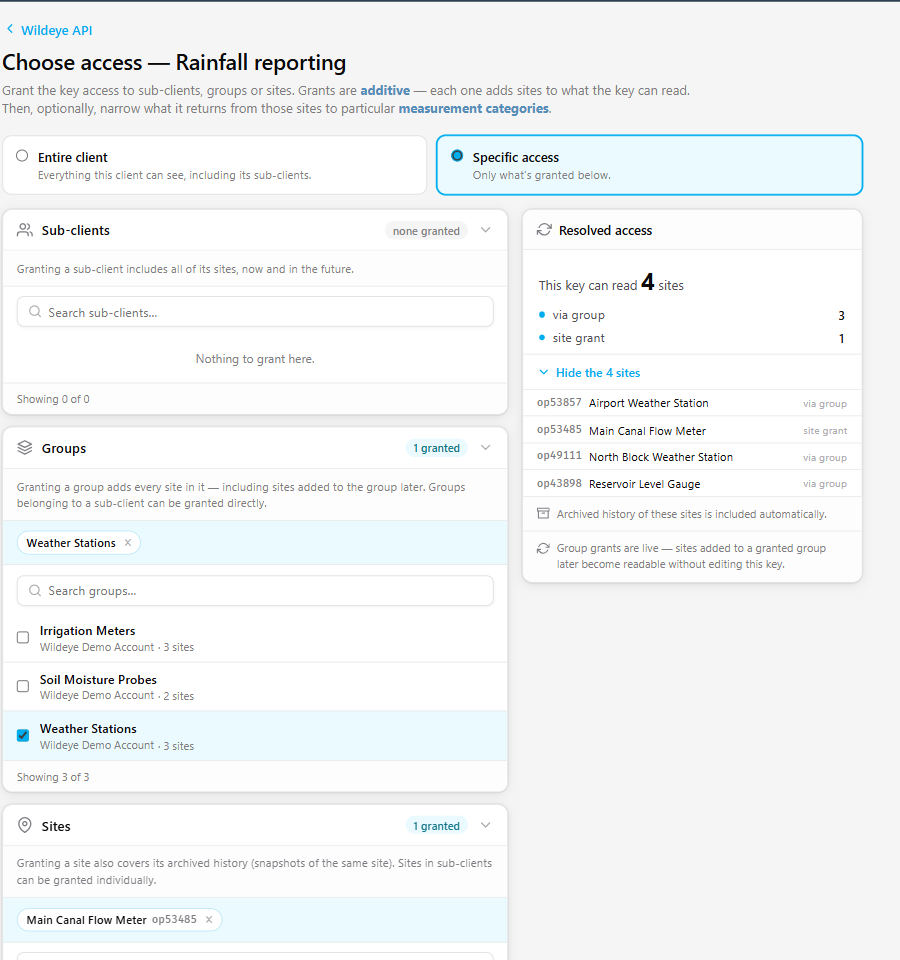
Grants add. Every sub-client, group or site you select adds more sites to what the key can reach.
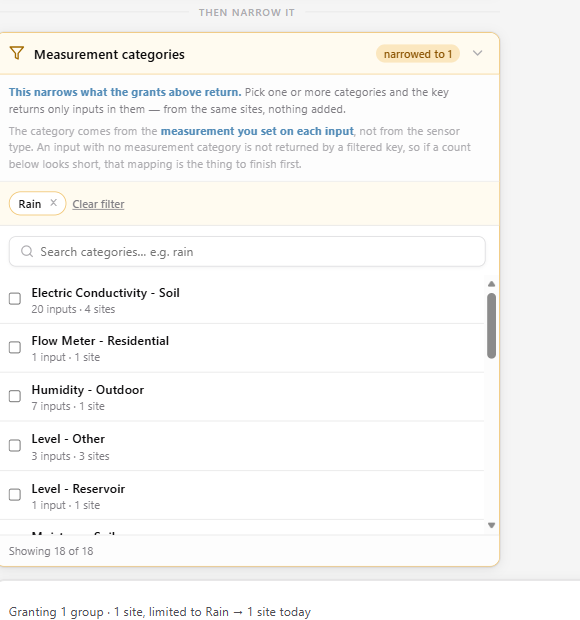
The measurement filter narrows. Picking one or more measurement categories limits what those sites give back. It never brings in anything new.
Use both and you are left with the overlap: the sites you granted, restricted to the measurements you chose.
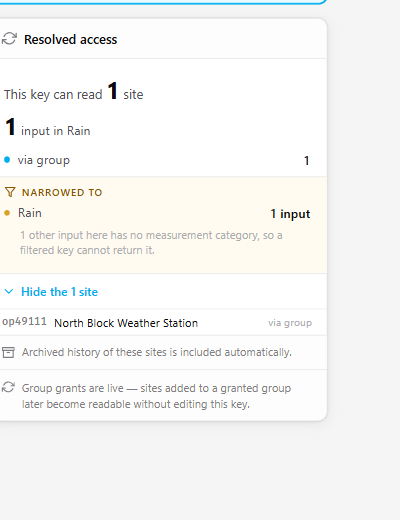
The Resolved access panel on the right keeps count as you go, listing the sites the key will actually reach and how many inputs survive the filter. It is worth reading before you generate the key, because it is the quickest way to spot a grant that resolves to less than you assumed.
Finding sites
Site search matches on either the site name or the OP number, so you can paste something like op12345 straight into the box.
Granting a group rather than individual sites
Group grants stay live. A site added to that group later becomes readable without anyone editing the key. Where the set of sites changes often, that is a good deal less to maintain than picking sites one at a time.
About measurement categories
The filter reads the measurement category set on each input, which comes from your own site configuration rather than from the sensor type.
An input with no measurement category set will not be returned by a filtered key. If the resolved count looks lower than you expected, that is usually the reason, and the Resolved access panel will say so.
Common scenarios
|
What you want |
How to set it up |
|---|---|
|
A reporting or BI tool that should see all of your data |
Entire client, with no measurement filter. This is the simplest option and it covers any sub-clients too. |
|
A contractor or agronomist who should only see the sites they look after |
Specific access, then select those sites. Search by name or OP number to find them quickly. |
|
A rainfall or weather dashboard that should not see anything else |
Leave the grant as Entire client, or narrow it if you prefer, and use Limit to particular measurements to select only the rainfall category. |
|
A sub-client who should only see their own sites |
Specific access, then select that sub-client. Everything beneath it is included. |
|
A whole region or category of sites you already manage as a group |
Specific access, then select the group instead of the individual sites. If the set of sites changes often this is far less to maintain. |
|
A trial or proof of concept before going live |
Create a separate key for it and scope it narrowly. Delete it when the trial finishes and create a fresh key for production, so the trial key never quietly becomes the live one. |
|
An integration whose scope needs to change |
Use Edit access on the existing key. There is no need to issue a new key or update the integration. See below. |
|
A key you think may have been exposed |
Delete it immediately and create a replacement. Deletion takes effect straight away. |
Changing what a key can read
Select the Edit access icon on the key's row, adjust the grants or the measurement filter, then choose Save access.
The key itself does not change. Anything already using it carries on working and picks up the new access straight away. You do not need to re-issue the key or touch your integration when its scope changes.
Deleting a key
Select the Delete icon on the key's row and confirm.
Deletion takes effect immediately. The key stops being accepted at once, and anything still using it will start receiving authorisation errors. It cannot be undone and the key cannot be recovered.
Delete a key if it may have been exposed, or when the integration it belongs to is retired.
Good practice
-
One key per integration, named for that integration.
-
Separate keys for development and production, so that revoking one does not disturb the other.
-
Grant the least access the integration actually needs.
-
Store keys in your application's secret store and keep them out of source control.
If something is not working
|
What you see |
What it usually means |
|---|---|
|
A filtered key returns no data |
The inputs at those sites have no measurement category set. Open Edit access and check the Resolved access panel. |
|
Fewer sites than you expected |
The grant resolves to fewer sites than assumed. The Resolved access panel lists exactly which sites are included. |
|
A key that worked has stopped |
It has been deleted, or it has reached its expiry date. Check the key list. |
|
The access column shows Unreadable |
Please contact support. We will need to look at that key's stored access. |
|
No Wildeye API tab under Settings |
Either the API has not been switched on for your account, or your account is still on the older settings menu. Support can sort out both, so get in touch and we will enable it. |
For the full API documentation, including endpoints and examples, see https://api.mywildeye.com/docs.